iPhone Photos Look Bad? 10 Ways to Improve Photo Quality
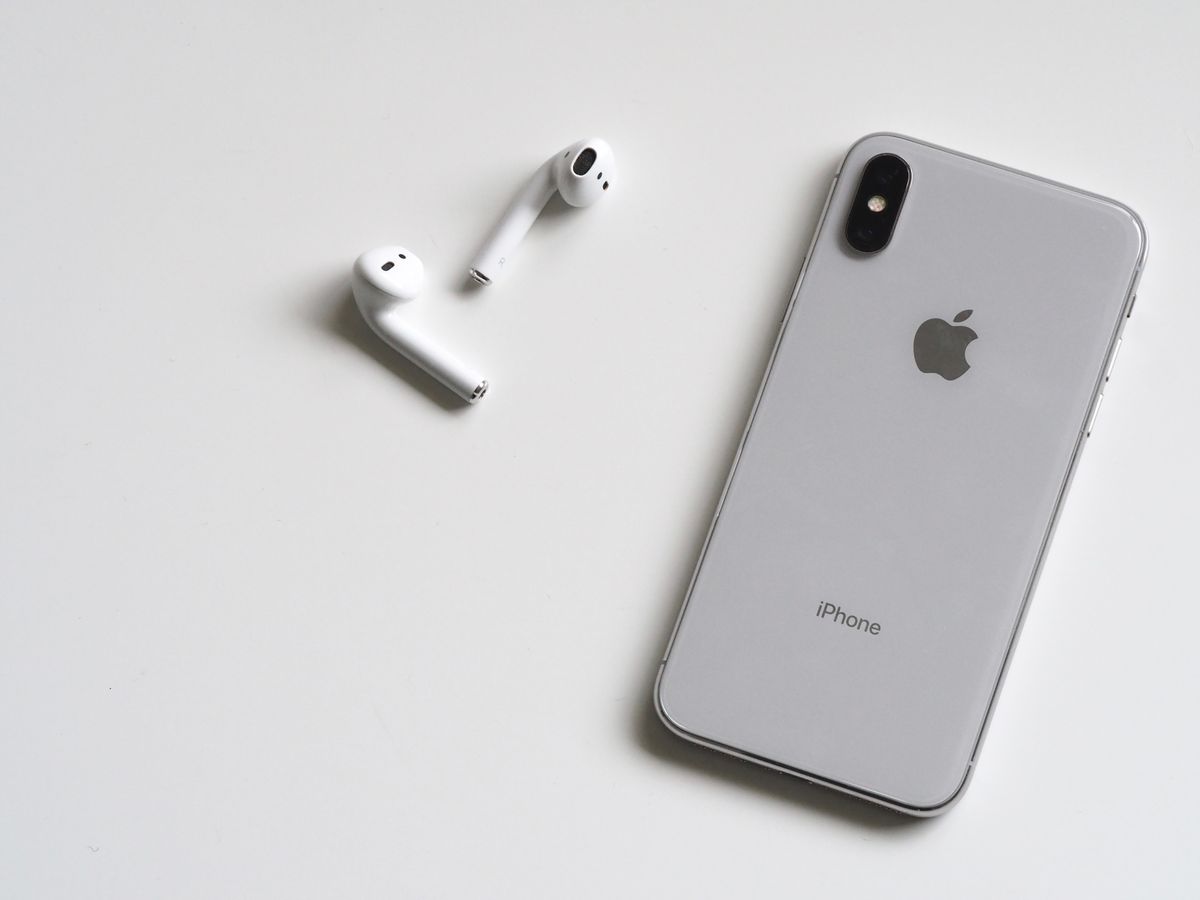
iPhone takes amazing photos when configured properly. If your photos look bad, this guide improves quality.
10 Ways to Improve Photo Quality
1. Clean Camera Lens
Smudges ruin photos. Wipe with microfiber cloth daily.
2. Use HDR
Settings > Camera > Auto HDR > ON. Dramatically improves dynamic range.
3. Enable High Efficiency
Settings > Camera > Formats > High Efficiency (HEIF). Better quality, less space.
4. Proper Lighting
Take photos in good light. Avoid very dark or very bright conditions.
5. Hold iPhone Steady
Camera shake causes blur. Hold with both hands, tuck elbows, use volume button.
6. Tap to Focus
Always tap subject before shooting. Ensures proper focus.
7. Avoid Digital Zoom
Zoom reduces quality. Move closer instead or crop later.
8. Use Gridlines
Settings > Camera > Grid > ON. Helps composition and level horizon.
9. Update iOS
Camera improvements in updates. Settings > General > Software Update.
10. Learn Camera Features
Use Portrait, Night, Pano modes appropriately. Each optimized for specific scenarios.
Photo Quality Settings
Best quality settings:
- Formats: High Efficiency
- HDR: Auto or On
- Grid: On
- Preserve Settings: On
Frequently Asked Questions
Q: Why are my photos grainy? A: Low light. iPhone uses high ISO in dark causing grain. Add light or use Night mode (iPhone 11+).
Q: Why do photos look worse than on camera? A: May be viewing compressed version. Check Settings > Photos > Download Originals.
Q: Can I improve old photos? A: Use editing tools. Photos app has powerful editing. Third-party apps like Snapseed help too.
Conclusion
Clean lens, use HDR, ensure good lighting, and hold steady for best results. Most "bad photos" are technique issues, not iPhone defects.
