iPhone Overheating? 12 Ways to Cool Down Your Device
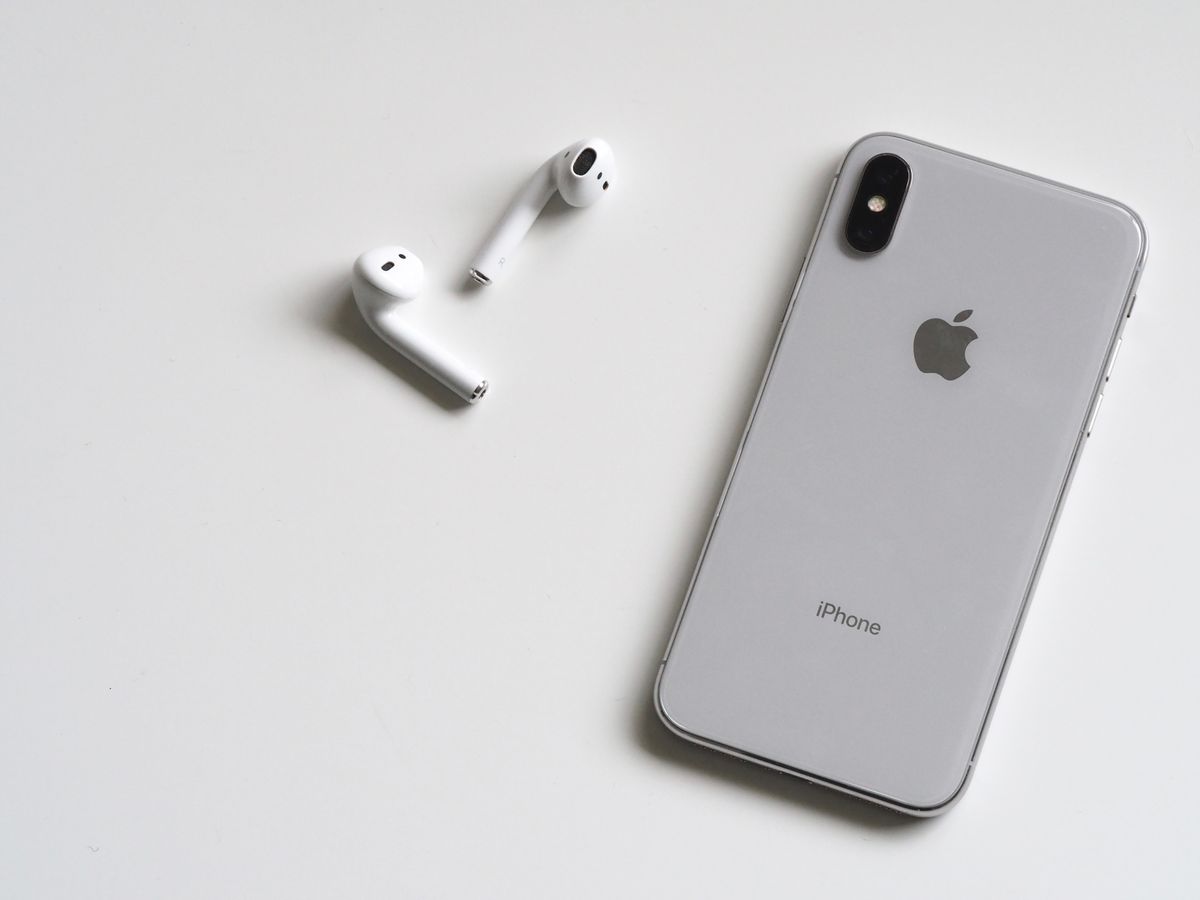
An overheating iPhone is not just uncomfortable to hold—it can also indicate serious problems and potentially damage your device. This guide explains why your iPhone overheats and provides 12 effective solutions to fix the problem.
Why Is Your iPhone Overheating?
iPhones generate heat during normal operation, but excessive heat indicates a problem:
Normal causes:
- Heavy processor tasks (gaming, video editing)
- Charging (especially fast charging)
- Using GPS navigation
- Direct sunlight exposure
- Initial setup or restoration
Problem indicators:
- Too hot to hold comfortably
- Temperature warning message appears
- Unexpected shutdowns
- Slow performance
- Screen dims automatically
Unsafe temperature ranges:
- Operating: 32° to 95°F (0° to 35°C)
- Storage: -4° to 113°F (-20° to 45°C)
What Happens When iPhone Overheats?
iOS has built-in thermal management:
At moderate heat:
- Screen brightness reduces
- Charging slows or stops
- Cellular signal weakens
- Camera flash disables
- Performance throttling begins
At excessive heat:
- "Temperature: iPhone needs to cool down" warning appears
- All functions except emergency calls disabled
- Must cool down before use
Long-term heat exposure can:
- Degrade battery faster
- Damage internal components
- Reduce overall lifespan
12 Solutions to Fix iPhone Overheating
1. Remove iPhone Case
Cases trap heat, especially during charging or heavy use.
Steps:
- Remove case immediately
- Let iPhone cool in open air
- Don't use thick cases while charging
Best practices:
- Use breathable cases
- Remove case during gaming or video calls
- Avoid leather or thick rubber cases for extended use
2. Close Unused Apps
Background apps consume resources and generate heat.
To close apps:
- Swipe up from bottom (or double-click Home)
- Swipe up on app cards to close
- Focus on closing:
- Games
- Video streaming apps
- Navigation apps
- Camera app
Don't obsessively close all apps—iOS manages this well. Only close resource-intensive ones.
3. Disable Background App Refresh
Apps updating in background generate heat.
To disable:
- Go to Settings > General > Background App Refresh
- Select Off or choose specific apps to disable
Recommended:
- Disable for games and social media
- Keep on for messaging and email
4. Lower Screen Brightness
Bright screens generate significant heat.
Quick adjustment:
- Swipe down from top-right (or up from bottom)
- Drag brightness slider down to 30-50%
Enable Auto-Brightness:
- Go to Settings > Accessibility > Display & Text Size
- Enable Auto-Brightness
5. Enable Airplane Mode Temporarily
Cellular and Wi-Fi radios generate heat when searching for signal.
When to use:
- In areas with poor signal
- When you don't need connectivity
- To cool down quickly
To enable:
- Swipe to Control Center
- Tap Airplane Mode icon
Note: This stops all calls and notifications.
6. Update iOS
Software bugs can cause overheating.
To update:
- Go to Settings > General > Software Update
- Download and install updates
- Check release notes for thermal management fixes
Important: Don't update if iPhone is already hot—cool it down first.
7. Avoid Direct Sunlight
Sunlight dramatically increases iPhone temperature.
Prevention:
- Never leave iPhone in direct sunlight
- Don't leave in hot car (temperatures can reach 140°F+)
- Keep in shade when outdoors
- Use sunshade in car
If overheated from sun:
- Move to cool, shaded area immediately
- Don't put in refrigerator (condensation damages internals)
- Let cool naturally at room temperature
8. Stop Charging While Using
Charging generates heat; using while charging compounds it.
Guidelines:
- Don't game while charging
- Avoid video calls during charging
- Stop heavy tasks when plugged in
If must use while charging:
- Remove case
- Lower brightness
- Use in cool room
- Avoid processor-intensive tasks
9. Use Original or Certified Chargers
Cheap chargers can cause overheating and damage.
Use:
- Original Apple chargers
- MFi (Made for iPhone) certified accessories
- Reputable third-party brands (Anker, Belkin)
Avoid:
- Counterfeit Apple chargers
- Cheap no-name chargers
- Damaged cables
Fast charging note: MagSafe and fast charging generate more heat—this is normal but remove case during fast charging.
10. Reset All Settings
Corrupted settings can cause overheating.
To reset:
- Go to Settings > General > Transfer or Reset iPhone
- Tap Reset > Reset All Settings
- Enter passcode
- Confirm
This does NOT erase:
- Photos, apps, or data
This resets:
- All settings to defaults
- Wi-Fi passwords
- Wallpapers
- Notification preferences
11. Check Battery Health
Degraded batteries overheat more easily.
To check:
- Go to Settings > Battery > Battery Health & Charging
- Check Maximum Capacity
What the numbers mean:
- 100-85%: Normal
- 85-80%: Noticeable degradation
- Below 80%: Replace battery
If battery health is poor:
- Apple Store battery replacement: $69-99
- Authorized service provider
- Significantly improves overheating
12. Restore iPhone
Software corruption can cause persistent overheating.
Before restoring:
- Backup to iCloud or computer
- Try all other solutions first
- Have Apple ID credentials ready
To restore:
- Connect to computer
- Open iTunes/Finder
- Select iPhone
- Click Restore iPhone
- Set up as new device (don't restore backup initially)
- Test if overheating resolved
If problem fixed, restore from backup. If it returns, backup may have corrupted data.
Activity-Specific Overheating Fixes
Gaming
- Play in short sessions (30-45 minutes)
- Lower graphics settings
- Close other apps
- Remove case
- Play in cool room
- Avoid charging while gaming
Video Recording
- Record in HD instead of 4K if possible
- Keep recording sessions under 10 minutes
- Let iPhone cool between takes
- Avoid direct sunlight
- Don't use case
GPS Navigation
- Lower screen brightness
- Close background apps
- Use car air conditioning vent mount
- Don't leave in sun on dashboard
- Consider dedicated GPS device for long trips
Video Calls
- Use earphones instead of speakerphone
- Lower screen brightness
- Ensure good Wi-Fi (weak signal causes overheating)
- Use table stand instead of holding
- Limit call duration
When to Seek Professional Help
Contact Apple Support if:
- Temperature warning appears frequently
- Overheating occurs during simple tasks
- iPhone overheats while idle
- Swelling or bulging battery (STOP USING IMMEDIATELY)
- Started after water exposure or drop
- Nothing in this guide helps
Don't ignore persistent overheating—it can cause permanent damage.
Prevention Tips
Daily Habits
- Keep iOS updated - Install updates promptly
- Monitor battery health - Check every few months
- Use quality accessories - Don't cheap out on chargers
- Avoid extreme temperatures - Don't leave in hot cars
- Remove case when charging - Especially fast charging
- Close unused apps - Particularly resource-intensive ones
Environmental Awareness
- Optimal room temperature: 62-72°F (16-22°C)
- Never refrigerate or freeze to cool down
- Gradual temperature changes - Let adjust when moving from cold to warm
- Avoid humidity - Moisture causes damage
- Good ventilation - Don't cover iPhone while using
Smart Usage
- Take breaks from intensive tasks
- Monitor battery temperature - If very warm, stop charging
- Charge overnight when not in use
- Update apps regularly - Bug fixes often improve efficiency
- Limit background processes
Frequently Asked Questions
Q: Is it normal for iPhone to get warm during charging? A: Yes, mild warmth is normal, especially with fast charging. If it becomes too hot to touch or triggers temperature warnings, there's a problem.
Q: Can overheating damage my iPhone permanently? A: Occasional overheating won't cause damage—iOS protects itself by shutting down. However, chronic overheating accelerates battery degradation and can damage internal components.
Q: Should I put my overheated iPhone in the refrigerator? A: NO! Rapid temperature changes cause condensation inside the device, which can cause water damage. Let it cool naturally at room temperature.
Q: Why does my iPhone overheat only when using certain apps? A: Poorly optimized apps can cause excessive CPU usage. Update the app, contact the developer, or use an alternative app.
Q: Is it safe to use iPhone while it's cooling down? A: For minor warmth, yes. If you received a temperature warning, wait until it disappears before using.
Conclusion
iPhone overheating usually results from environmental factors or heavy usage. The most effective solutions are:
Quick fixes:
- Remove case
- Lower brightness
- Close unused apps
- Move to cooler environment
Preventive measures:
- Use in appropriate temperature ranges
- Avoid direct sunlight
- Remove case while charging
- Update iOS regularly
- Use quality charging accessories
When to worry:
- Frequent temperature warnings
- Overheating during simple tasks
- Battery swelling
- Overheating while idle
Most overheating issues resolve with basic troubleshooting. If your iPhone consistently overheats despite following this guide, you likely have a hardware problem requiring professional repair.
Remember: Your iPhone's thermal management system is designed to protect itself. If it displays a temperature warning, respect it—continuing to use an overheated iPhone can cause permanent damage.
For persistent issues that don't respond to these solutions, contact Apple Support or visit an Apple Store for diagnostic testing. Battery replacement often resolves chronic overheating in older devices.

