iPhone Speaker Distorted or Crackling? 9 Ways to Fix Audio Issues
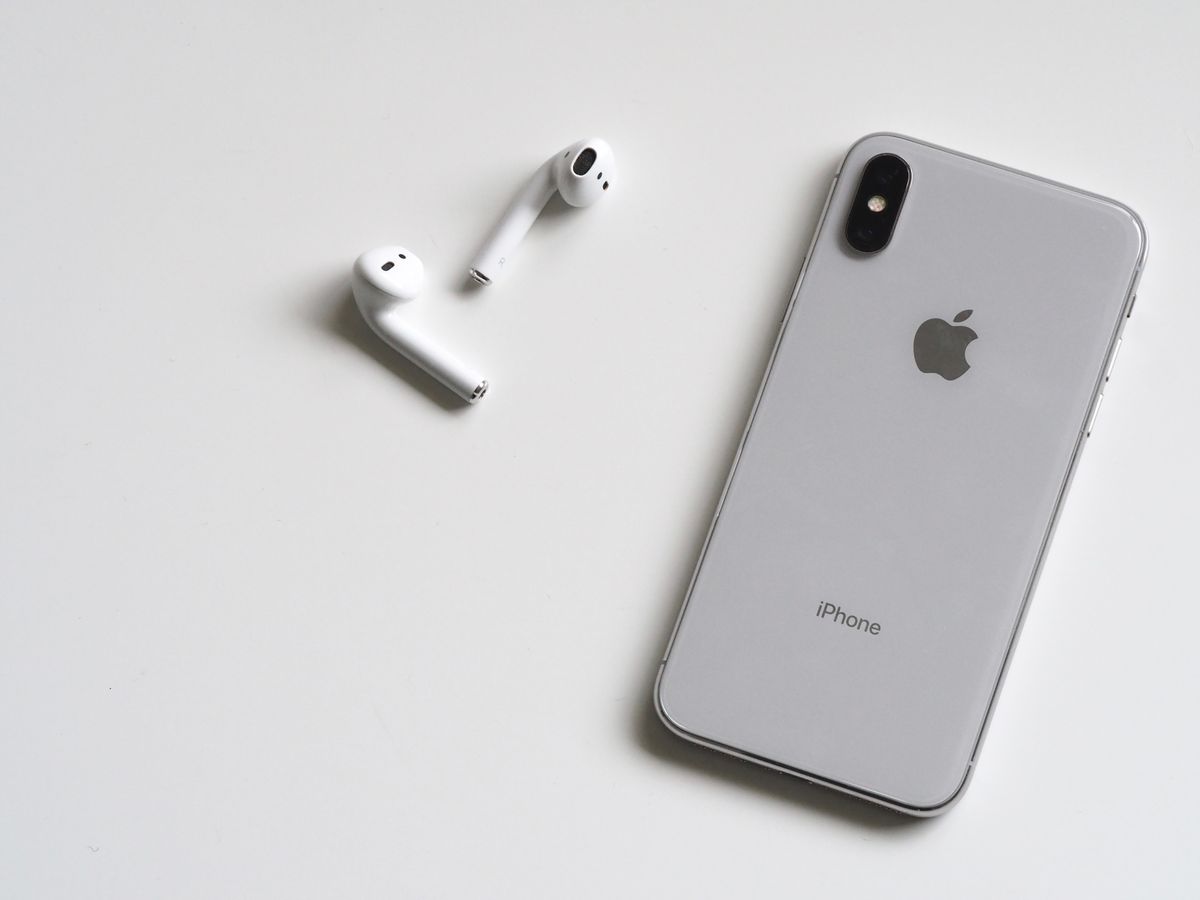
Distorted, crackling, or buzzing iPhone speakers ruin calls, music, and videos. This guide fixes all speaker audio quality problems.
Common Speaker Problems
- Crackling or popping sounds
- Buzzing or rattling
- Muffled or distorted audio
- Static noise
- Sound cuts in and out
- One speaker louder than other
Why iPhone Speakers Sound Bad
Common causes:
- Dirt or debris in speaker grilles
- Water damage
- Software glitches
- Volume too high (causes distortion)
- Damaged speaker hardware
- Bluetooth interference
9 Solutions to Fix Distorted Speakers
1. Clean Speaker Grilles
Dirt is the #1 cause of speaker issues.
Cleaning method:
- Turn off iPhone
- Use soft-bristled toothbrush
- Gently brush speaker openings
- Use circular motions
- Blow out loosened debris
- Don't use liquids or sharp objects
Speaker locations:
- Bottom of iPhone (both sides of port)
- Top earpiece
- Don't insert anything into openings
2. Lower Volume
Max volume causes distortion.
Test:
- Lower volume to 50-70%
- Check if distortion improves
- Very high volume damages speakers over time
If only distorted at max volume:
- Normal behavior
- Keep volume at reasonable level
3. Remove Case
Cases can block or vibrate against speakers.
Test:
- Remove case
- Play audio
- Check if distortion gone
If case is problem:
- Get case with proper speaker cutouts
- Avoid thick or tight-fitting cases
4. Disable Bluetooth
Audio might be routing incorrectly.
Steps:
- Settings > Bluetooth > OFF
- Or disconnect all Bluetooth devices
- Test speakers
During playback:
- Tap audio output icon
- Ensure "iPhone" selected, not Bluetooth
5. Restart iPhone
Clears software glitches affecting audio.
Force restart:
- iPhone 8+: Volume Up, Down, hold Side
- iPhone 7: Hold Volume Down + Power
- iPhone 6s: Hold Home + Power
After restart, test audio quality.
6. Update iOS
Audio bugs fixed in updates.
To update:
- Settings > General > Software Update
- Install available updates
- Audio improvements often included
7. Check Audio Balance
Balance settings affect speaker output.
To check:
- Settings > Accessibility > Audio/Visual
- Ensure balance slider centered
- Not all left or right
Adjust if needed - should be in middle.
8. Test with Different Content
Determine if content-specific issue.
Test various sources:
- Music app
- YouTube
- Voice Memos recording
- Ringtones
- Phone calls
If one source sounds bad:
- Problem with that file/stream
- Not speaker hardware issue
9. Reset All Settings
Fixes corrupted audio settings.
Steps:
- Settings > General > Transfer or Reset iPhone
- Reset > Reset All Settings
- Doesn't erase data
- Resets audio preferences
Specific Issues
Crackling During Calls Only
Solutions:
- Clean earpiece speaker
- Disable noise cancellation
- Check network signal
- Update carrier settings
Buzzing at Certain Frequencies
Indicates:
- Speaker cone damaged
- Debris in speaker
- Hardware issue
Solutions:
- Clean thoroughly
- If persists, hardware repair needed
One Speaker Louder Than Other
Check balance settings first:
- Settings > Accessibility > Audio/Visual
- Center balance slider
If still imbalanced:
- One speaker may be blocked/damaged
- Clean both speakers
- Check for case interference
Static or White Noise
Solutions:
- Disable Bluetooth
- Reset network settings
- Update iOS
- May be interference
Sound Cuts In and Out
Solutions:
- Check connection (if using adapter)
- Disable Bluetooth
- Close background apps
- Restart iPhone
Testing Each Speaker
iPhone has multiple speakers:
Bottom speakers:
- Play music
- Cover each opening individually
- Sound should reduce when covered
Earpiece (call speaker):
- Make phone call
- Listen at top of iPhone
- Should hear clearly
If one doesn't work:
- That specific speaker damaged
- Needs individual repair
Water Damage
If recently exposed to liquid:
Immediate steps:
- Don't charge
- Let dry 24-48 hours
- Speakers often recover after drying
- Don't use rice
- Silica gel packets better
If crackling persists after drying:
- Liquid may have damaged speaker
- Professional cleaning needed
- May require speaker replacement
When It's Hardware Damage
Hardware issue signs:
- Distortion at all volumes
- Crackling persists after all troubleshooting
- Physical damage visible
- Started after drop/water
- Speaker rattles when shaken
Next steps:
- Apple Store diagnostic
- Get repair quote
- Check warranty/AppleCare+
Repair costs:
- Speaker replacement: $150-300
- Under warranty: Free
- With AppleCare+: $29-99
Temporary Workarounds
If can't fix immediately:
- Use headphones
- External Bluetooth speaker
- Lower volume (reduces distortion)
- Use for calls only until repaired
Prevention
- Clean speakers monthly
- Avoid max volume regularly
- Protect from water
- Use quality cases with proper cutouts
- Don't drop iPhone
- Keep software updated
Frequently Asked Questions
Q: Why does speaker crackle only at high volume? A: Normal for speakers near max volume. Lower volume or speaker may be starting to fail.
Q: Can I fix damaged speaker myself? A: Not recommended. Requires disassembly and soldering. Professional repair only.
Q: Will iOS update fix crackling speakers? A: If software issue, yes. If hardware damage, no - needs physical repair.
Q: How much does speaker repair cost? A: Apple: $150-300 out of warranty. AppleCare+: $29-99. Third-party: $50-150.
Q: Is speaker crackling covered by warranty? A: Yes, if defect. Not if accidental damage or water damage.
Conclusion
Quick fixes:
- Clean speaker grilles (5 minutes)
- Lower volume to 70% (30 seconds)
- Remove case (1 minute)
- Restart iPhone (2 minutes)
If those don't work: 5. Disable Bluetooth 6. Check audio balance 7. Update iOS 8. Reset settings
Most common causes:
- Dirt in speakers (60%)
- Volume too high (20%)
- Software glitches (10%)
- Hardware damage (10%)
Most distorted speaker issues fix with cleaning and software troubleshooting. If crackling persists at moderate volumes after all fixes, likely hardware damage requiring professional repair.
Pro tip: Regular monthly cleaning with soft brush prevents most speaker issues.

