App Store Not Working? 12 Fixes for Download and Update Issues
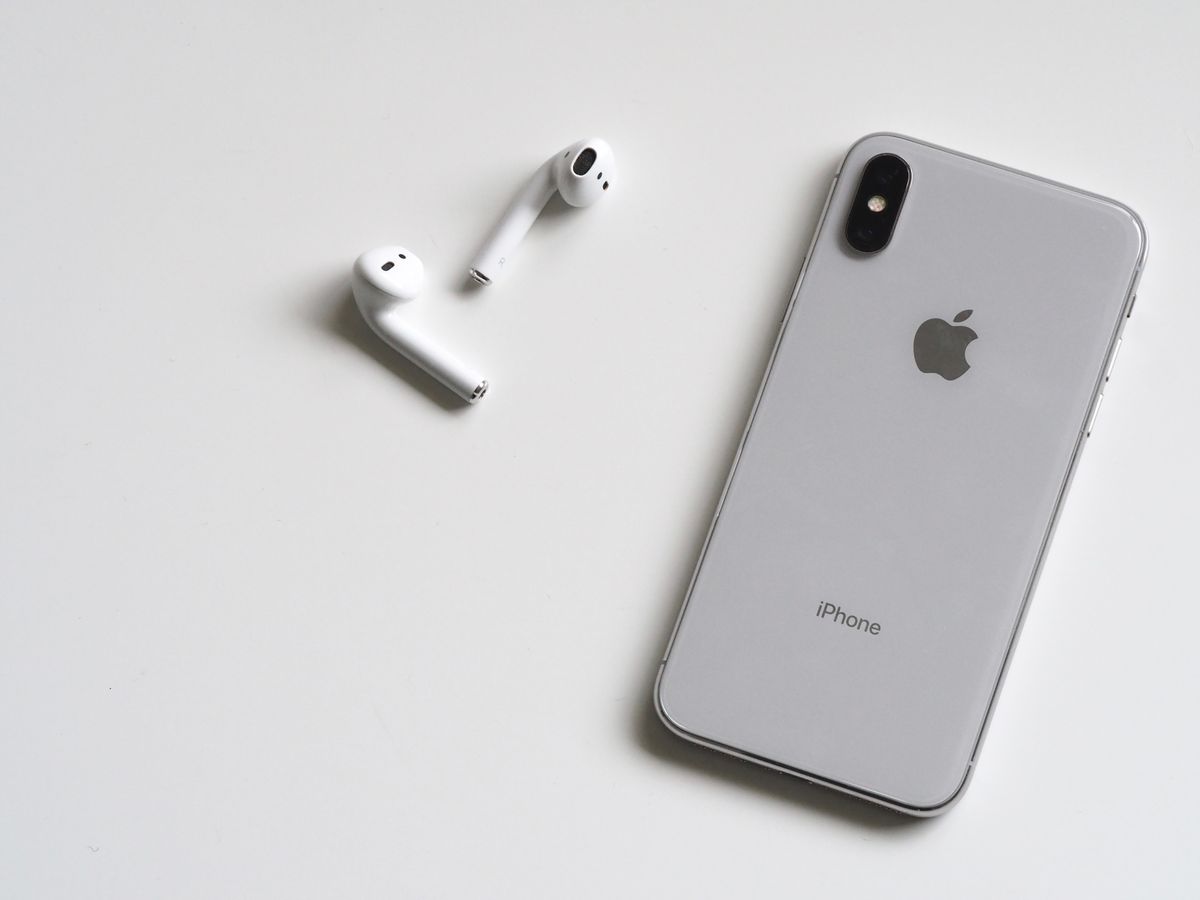
When the App Store stops working, you can't download new apps or update existing ones. Whether the App Store won't load, downloads are stuck, or you're getting error messages, this guide has the solutions you need.
Common App Store Problems
- App Store won't open or load
- Apps stuck on "Loading..." or "Waiting..."
- "Cannot Connect to App Store" error
- Updates won't download
- Downloads fail halfway
- "Your request cannot be completed" error
- Blank white screen in App Store
- Apps downloading but not installing
12 Solutions to Fix App Store Issues
1. Check Internet Connection
Poor connection prevents App Store from working.
Test connection:
- Open Safari
- Try loading a website
- Check Wi-Fi or cellular signal strength
If connection is weak:
- Move closer to router
- Switch to cellular (if on Wi-Fi)
- Switch to Wi-Fi (if on cellular)
- Restart router
- Forget and rejoin Wi-Fi
2. Force Close and Reopen App Store
App might be frozen.
- Swipe up from bottom (or double-click Home)
- Find App Store
- Swipe up to close
- Wait 10 seconds
- Reopen from home screen
3. Restart Your iPhone
Resolves temporary software glitches.
Force restart:
- iPhone 8+: Volume Up, Volume Down, hold Side
- iPhone 7: Hold Volume Down + Power
- iPhone 6s and earlier: Hold Home + Power
4. Check Apple System Status
Apple's servers might be down.
- Visit apple.com/support/systemstatus
- Look for "App Store" service
- Green = working, Red/Yellow = issues
If App Store service is down, wait for Apple to fix it.
5. Sign Out and Back Into Apple ID
Refreshes account connection.
Steps:
- Settings > [Your Name] > Media & Purchases
- Tap Sign Out
- Wait 30 seconds
- Settings > Sign in to your iPhone
- Enter Apple ID and password
Important: This doesn't affect your data, only App Store connection.
6. Update iOS
Bugs are often fixed in updates.
- Settings > General > Software Update
- Download and install if available
- Connect to Wi-Fi
- Keep charged
7. Reset Network Settings
Fixes connection issues with App Store.
- Settings > General > Transfer or Reset iPhone
- Reset > Reset Network Settings
- Enter passcode
- Confirm
This erases:
- Wi-Fi passwords
- Bluetooth pairings
- VPN settings
Doesn't erase:
- Apps or data
8. Check Date and Time Settings
Incorrect date/time prevents App Store connection.
- Settings > General > Date & Time
- Enable Set Automatically
- If already on, toggle off then back on
9. Clear App Store Cache
Method 1 - Via App Store:
- Open App Store
- Tap any tab 10 times rapidly (Today, Games, Apps, etc.)
- App Store will reload and clear cache
Method 2 - Via Settings:
- Go to Settings > App Store
- Toggle off Automatic Downloads
- Restart iPhone
- Toggle back on
10. Check Payment Method
Invalid payment method prevents downloads.
- Settings > [Your Name] > Payment & Shipping
- Verify credit card information
- Update if expired
- Or remove and re-add
For free apps:
- You can set payment method to "None"
- Settings > [Your Name] > Media & Purchases > View Account > Payment Information
11. Delete and Reinstall Stuck Apps
If specific app won't update or download.
- Tap and hold app icon
- Remove App > Delete App
- Go to App Store
- Search for app
- Download fresh copy
Note: This deletes app data. Use only if app has cloud backup or isn't important.
12. Reset All Settings
For persistent issues.
- Settings > General > Transfer or Reset iPhone
- Reset > Reset All Settings
- Enter passcode
Doesn't delete data, only resets settings.
Error-Specific Solutions
"Cannot Connect to App Store"
- Check internet connection
- Check Apple System Status
- Sign out and back into Apple ID
- Reset network settings
"Your Purchase Could Not Be Completed"
- Check payment method
- Ensure sufficient funds
- Verify billing address
- Contact Apple Support if payment valid
"This app is no longer shared with you"
- App removed from Family Sharing
- Purchase app yourself
- Or ask family organizer to re-share
Stuck on "Loading..."
- Delete the app being downloaded
- Force close App Store
- Restart iPhone
- Try downloading again
Can't Update Apps
- Go to Settings > App Store
- Turn on App Updates (under Automatic Downloads)
- Or manually update: App Store > profile icon > scroll to updates
Prevention Tips
- Keep iOS updated
- Maintain stable internet connection
- Don't let storage get too full (keep 2+ GB free)
- Keep payment method current
- Restart iPhone weekly
- Update apps regularly
When to Contact Apple Support
- Problem persists after all troubleshooting
- Account-specific issues
- Billing problems
- Region/country restrictions
Conclusion
Most App Store issues fix with:
- Checking internet
- Restarting iPhone
- Signing out/in to Apple ID
- Updating iOS
If problems persist, check Apple System Status and contact support.
