Can't Delete Apps on iPhone? 7 Fixes for Stuck Apps
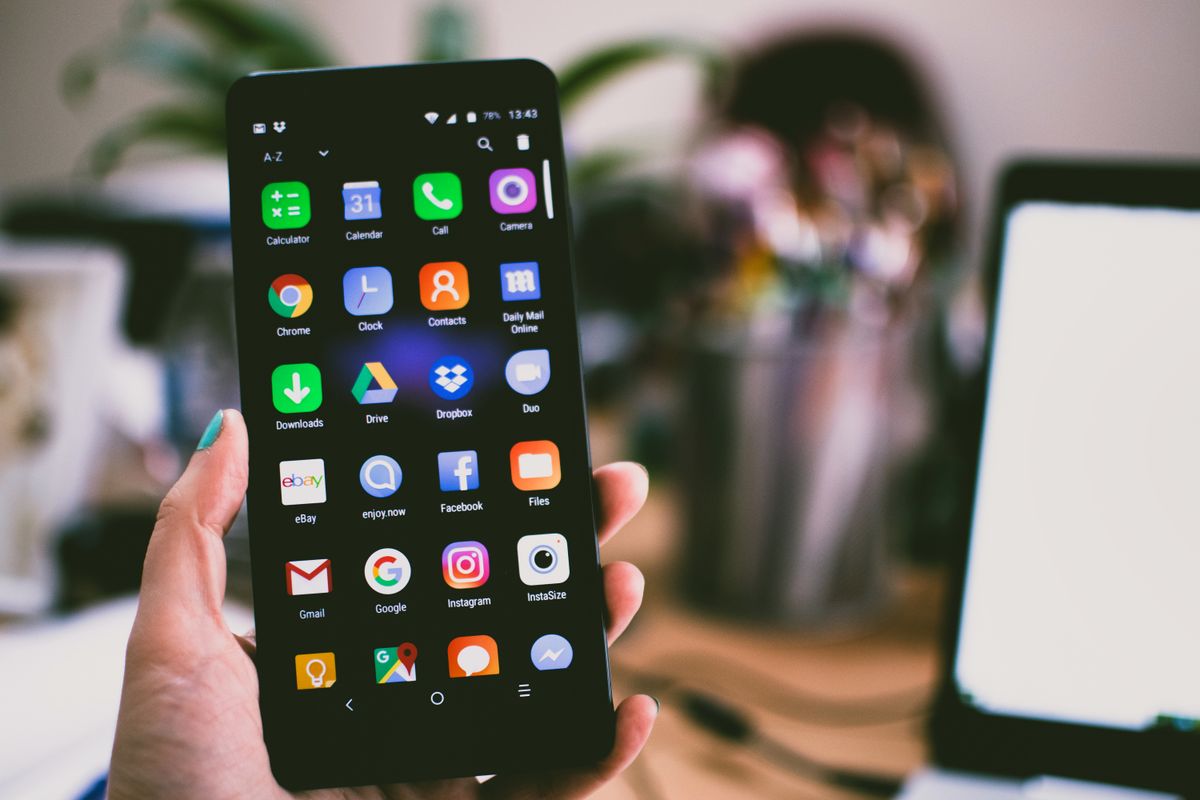
When iPhone apps won't delete or keep reappearing, it's frustrating. This guide fixes all app deletion problems.
Common App Deletion Problems
- Can't delete app (X button missing)
- App deletion greyed out
- App comes back after deleting
- "Unable to Delete" error
- Some apps won't delete
- Delete option not available
7 Solutions to Delete Stubborn Apps
1. Check Screen Time Restrictions
Restrictions prevent deletion.
Check:
- Settings > Screen Time
- Content & Privacy Restrictions
- iTunes & App Store Purchases
- Deleting Apps > Ensure Allow
If restricted:
- Need Screen Time passcode
- Or disable restrictions
2. Try Different Deletion Methods
Multiple ways to delete.
Method 1 - Long press:
- Tap and hold app icon
- Tap Remove App
- Delete App
- Delete
Method 2 - Edit mode:
- Tap and hold empty space
- Icons jiggle
- Tap X on app
- Delete
Method 3 - Settings:
- Settings > General > iPhone Storage
- Find app
- Delete App
3. Offload Instead of Delete
Removes app but keeps data.
Steps:
- Settings > General > iPhone Storage
- Tap app
- Offload App
Difference:
- Delete: Removes app and data
- Offload: Removes app, keeps data
4. Restart iPhone
Clears app management glitches.
Force restart:
- iPhone 8+: Volume Up, Down, hold Side
- iPhone 7: Hold Volume Down + Power
- iPhone 6s: Hold Home + Power
After restart, try deleting.
5. Check if System App
Can't delete built-in apps.
Apps you CAN'T delete:
- Phone, Messages, Safari
- Settings, Camera, Photos
- Clock, App Store
Apps you CAN delete:
- Mail, Calendar, Contacts
- Maps, Music, FaceTime
- Most other Apple apps
6. Sign Out of App Account
Some apps require sign-out first.
For subscription apps:
- Open app
- Sign out of account
- Cancel subscription if any
- Then delete app
7. Update iOS
Fixes app deletion bugs.
To update:
- Settings > General > Software Update
- Install updates
App Keeps Coming Back
If app reinstalls itself:
Causes:
- iCloud sync
- Automatic Downloads enabled
- Family Sharing
Solutions:
- Settings > App Store
- Automatic Downloads > Apps > OFF
- Delete app on all your devices
- Check Family Sharing settings
Can't Delete Specific Apps
Can't Delete Stock Apps
For built-in apps:
- Can hide from Home Screen
- Can't fully delete
- Part of iOS
To hide:
- Tap and hold app
- Remove from Home Screen
- Still in App Library
Can't Delete Enterprise Apps
Work/school apps:
- May be managed by MDM
- Contact IT administrator
- Can't delete without permission
Can't Delete Problematic Apps
If app won't delete normally:
- Restart iPhone
- Update iOS
- Use Settings > iPhone Storage method
- Reset all settings
Freeing Up Space Without Deleting
Alternatives:
- Offload Unused Apps (auto-enables)
- Clear app caches
- Delete app data
- Use iCloud storage
Frequently Asked Questions
Q: Why can't I delete some apps? A: System apps can't be deleted, or Screen Time restrictions prevent deletion.
Q: Will deleted apps lose all data? A: Yes, unless app stores data in cloud. Offload preserves data.
Q: How do I delete apps I can't see? A: Settings > General > iPhone Storage > shows all apps including hidden ones.
Q: Why does app come back after deleting? A: Automatic Downloads enabled, or syncing from iCloud. Disable in App Store settings.
Q: Can I delete App Store app? A: No, App Store is system app and can't be deleted.
Conclusion
Quick fixes:
- Check Screen Time restrictions (2 minutes)
- Use Settings > iPhone Storage method (1 minute)
- Restart iPhone (2 minutes)
- Try offload instead (preserves data)
Most app deletion issues are due to Screen Time restrictions or trying to delete system apps. Check restrictions first, then try alternative deletion methods.
Pro tip: Use Offload if you want to free space but might need app later - keeps your data.
